How to Clean Riso ComColor Printer Sensor | Fix Error x01-1050, x02-1058 & x02-1100


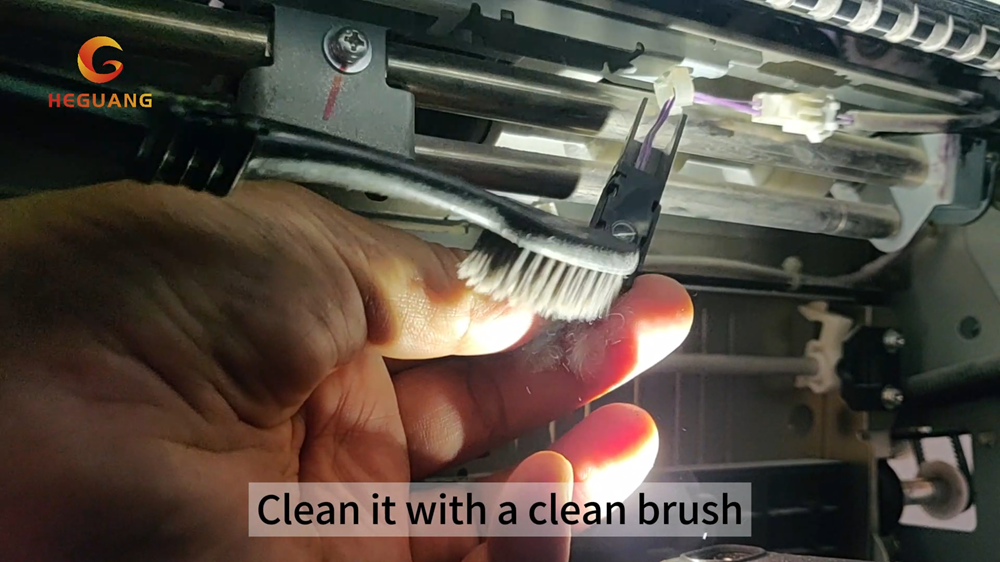
二,What Causes the Sensor to Trigger These Error Codes?
2.1 The paper head sensor and second paper feed sensor in your Riso ComColor printer are optical components. They detect paper position and feed status during every print cycle. Over time, three things cause them to malfunction:
- Ink residue — fine ink mist settles on the sensor surface during high-volume printing
- Paper dust — paper fibers accumulate on the lens with every sheet fed through
- Environmental dust — particles in the air build up gradually, especially in poorly ventilated rooms
When the sensor lens is blocked, the printer cannot read paper position accurately and throws error codes x01-1050, x02-1058, or x02-1100 as a safety stop.
2.2How Often Should You Clean the Riso ComColor Sensor?
Cleaning frequency depends on your print volume:
| Usage level | Monthly volume | Recommended cleaning |
|---|---|---|
| Light use | Under 10,000 pages | Every 2 months |
| Normal use | 10,000–30,000 pages | Every month |
| Heavy use | Over 30,000 pages | Every 2 weeks |
If error codes appear more frequently than usual, clean the sensor immediately regardless of schedule. Early cleaning takes 5 minutes — waiting until a full error stop costs more downtime.
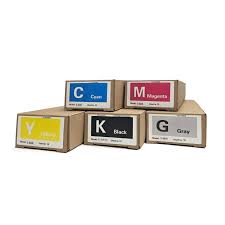
Low-quality ink leaves excess oil residue on internal components, including the paper sensor. Chameleon compatible ink is formulated with a cleaner oil base, reducing residue buildup and extending the time between sensor cleanings. Available for all major Riso ComColor models:
| Printer model | Compatible ink |
|---|---|
| ComColor GL9730 / GL7430 | Riso GL9730 / GL7430 ink → |
| ComColor FT5230 / FT2430 | Comcolor FT5230 / FT2430 ink → |
| ComColor GD9630 / GD7330 | Riso GD9630 / GD7330 ink → |
| ComColor FW1230 | Comcolor FW1230 ink → |
| ComColor X1 9150 | Riso X1 9150 ink → |
Cleaning the Riso ComColor printer BP belt
How to install the waste ink tank of the Riso ComColor printer?
Related Article