How to Enter Service Mode on Riso Printers
author: Chameleon
2026-02-24
If you own a Riso printer, you may encounter situations where you need to enter service mode—such as troubleshooting common malfunctions, resetting maintenance counters, adjusting hardware parameters, or performing advanced maintenance. Service mode is a special operation interface designed for technicians, but with the correct steps, regular users can also access it safely. This blog will detail the specific methods to enter service mode for different Riso printer models, key precautions, and common mistakes to avoid, helping you solve printer problems efficiently.

First, it’s important to clarify: Riso printers have different operation methods for entering service mode depending on their models. The most common series include Riso ComColor, Riso RZ2, and other mainstream models. Before starting, please confirm your printer model first, which can be found on the nameplate at the bottom or back of the printer, or in the printer’s user manual. This step is crucial to avoid incorrect operations that may damage the printer or cause malfunctions.
Method 1: Enter Service Mode for Riso ComColor Series (Taking ComColor 9050R as an Example) For Riso ComColor series printers, the operation to enter service mode mainly relies on the keypad combination on the operation panel. First, ensure the printer is in the mode screen—this is a prerequisite for entering the test mode (service mode). If the printer is in a printing or standby state that is not the mode screen, press the mode key to switch to the mode screen first.
Next, press the 8 key, * key, and # key on the keypad simultaneously. Hold the three keys for 1-2 seconds until the pass-code input screen appears on the operation panel. Then, use the numeric keypad to enter the 4-digit password "3-2-1-4"—this is the default service password for most Riso ComColor series printers. After entering the password correctly, press the OK key or start key, and the screen will switch to the test mode standby screen, indicating that you have successfully entered the service mode.
Method 2: Enter Service Mode for Riso RZ2 Series (Taking RZ200/RZ220 as Examples) The Riso RZ2 series, including RZ200, RZ220, RZ230, etc., has a different operation logic for entering service mode, which needs to be completed by combining power-on operation and key pressing. First, turn off the printer power, and ensure that the printer is completely shut down (the indicator light is off, and there is no running sound).
Then, press and hold the two print position keys (marked as ᐊ and ᐅ on the panel) at the same time, and keep holding them while turning on the printer power. Do not release the two print position keys until the printer starts up and the operation panel displays the test mode interface. After successful entry, the test mode will be divided into three types: standard test mode (No. 0001-0999), options test mode (No. 3000-3599), and protected area test mode (No. 1000-1399).
It should be noted that if you need to enter the protected area test mode of the Riso RZ2 series, you need to enter the access code "9874" after entering the standard test mode. This area involves more core parameters of the printer, so it is not recommended for ordinary users to operate it casually to avoid affecting the normal use of the printer.
General Precautions for Entering Riso Printer Service Mode No matter which model of Riso printer you use, you must pay attention to the following points when entering service mode to ensure operational safety and avoid unnecessary losses.
1. Do not modify unknown parameters: Service mode contains a large number of printer hardware and software parameters. For parameters you do not understand, do not modify them casually—incorrect parameter settings may cause the printer to fail to start, print abnormally, or even damage internal components.
2. Correct exit method: After completing the required operations in service mode, do not directly turn off the printer power to exit. For most Riso printers, you only need to press the mode key on the operation panel in standby mode or when the operation is stopped to exit service mode safely. Direct power-off may cause parameter confusion.
Common Mistakes to Avoid When Entering Service Mode Many users fail to enter service mode or cause printer malfunctions due to incorrect operations. Here are the most common mistakes to help you avoid detours.
Mistake 1: Ignoring the printer model and using a universal method. As mentioned earlier, different Riso series have different operation methods. For example, the ComColor series uses a keypad combination to enter service mode, while the RZ2 series needs to press keys while turning on the power. Using the wrong method will not only fail to enter service mode but may also affect the normal operation of the printer.
Mistake 2: Pressing the keys too quickly or not holding them long enough. When using the key combination method, it is necessary to press the specified keys simultaneously and hold them for the required time (usually 1-3 seconds). Pressing the keys too quickly or releasing them in advance will cause the operation to fail, and you need to restart the operation.
Mistake 3: Modifying parameters without authorization. Some users enter service mode to solve a certain fault, but randomly modify other unknown parameters, resulting in new faults. It is recommended that ordinary users only perform operations they are familiar with in service mode, and consult professional technicians for complex faults.
Final Reminder: Service mode is a professional operation interface for Riso printers. Although ordinary users can enter it through the correct steps, it is still necessary to operate cautiously. If you encounter problems that cannot be solved during the operation, or if you are not sure about the operation steps, it is recommended to refer to the official user manual of Riso or contact Riso after-sales service for help to avoid unnecessary losses.
If you have other questions about entering service mode for Riso printers of specific models, you can leave a message in the comment area, and we will reply to you as soon as possible.
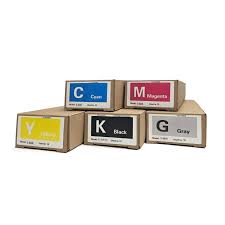
Learn about Riso ink products and models.
For more information about Heguang, please visit www.inkchameleon.com.
You can also connect with Heguang Facebook (Chameleon comcolor ink),
Instagram (heguang_inkjet_ink), and YouTube (Chameleon ComColor ink).
You can also connect with Heguang Facebook (Chameleon comcolor ink),
Instagram (heguang_inkjet_ink), and YouTube (Chameleon ComColor ink).
Riso ComColor FT5230 Ink Cartridge Guide: Setup, Compatible Ink & Maintenance Tips
Removing the Output Tray of a Riso ComColor GD Printer
Related Article
2026 1 Prepare materials and check the machine 2 Identify the correct ink color and cartridge type 3 Open the front cover and remove the cartridge 4 Remove the empty cartridge
Steps for Using RISO Ink: A Detailed Step-by-Step Guide

Discover the riso printing working principle, a unique stencil-based digital printing method creating bold, textured prints. Explore risograph ink, layered color effects, and the process behind dynamic and economical riso prints.
Understanding Riso Printing: Working Principle & Process